
How to Set Up and Use the WhatsApp Business API for Sales


By the end of this guide, you'll know how to get access to the WhatsApp Business API, connect it to a phone number your team can sell from, get your first message templates approved, and wire the whole thing into your CRM so reps can follow up leads in the channel buyers actually read. This is the path from zero API access to a working sales workflow, plus the compliance and cost rules that trip teams up along the way. Work the steps in order.
What the WhatsApp Business API is (and what it isn't)
The WhatsApp Business API is the programmatic version of WhatsApp built for teams that message at scale. It has no app of its own: instead, it connects WhatsApp messaging to your CRM, helpdesk, or contact center software so multiple agents can work from one number, send approved templates, and automate follow-ups. That makes it a different tool from the free WhatsApp Business app, which is built for a single phone and manual replies. If you want the full breakdown of the three tiers, our guide to WhatsApp vs WhatsApp Business vs the Business API covers it.
Why bother for sales? Reach is the short answer. WhatsApp passed 3 billion monthly active users in March 2025, and in much of Latin America, the Middle East, South Asia, and Africa it is the default way people talk to businesses. If your prospects live in a chat app, that's where your follow-ups should land. For the wider case on messaging as a sales channel, see how WhatsApp boosts conversions for sales teams. The rest of this article is about the mechanics.
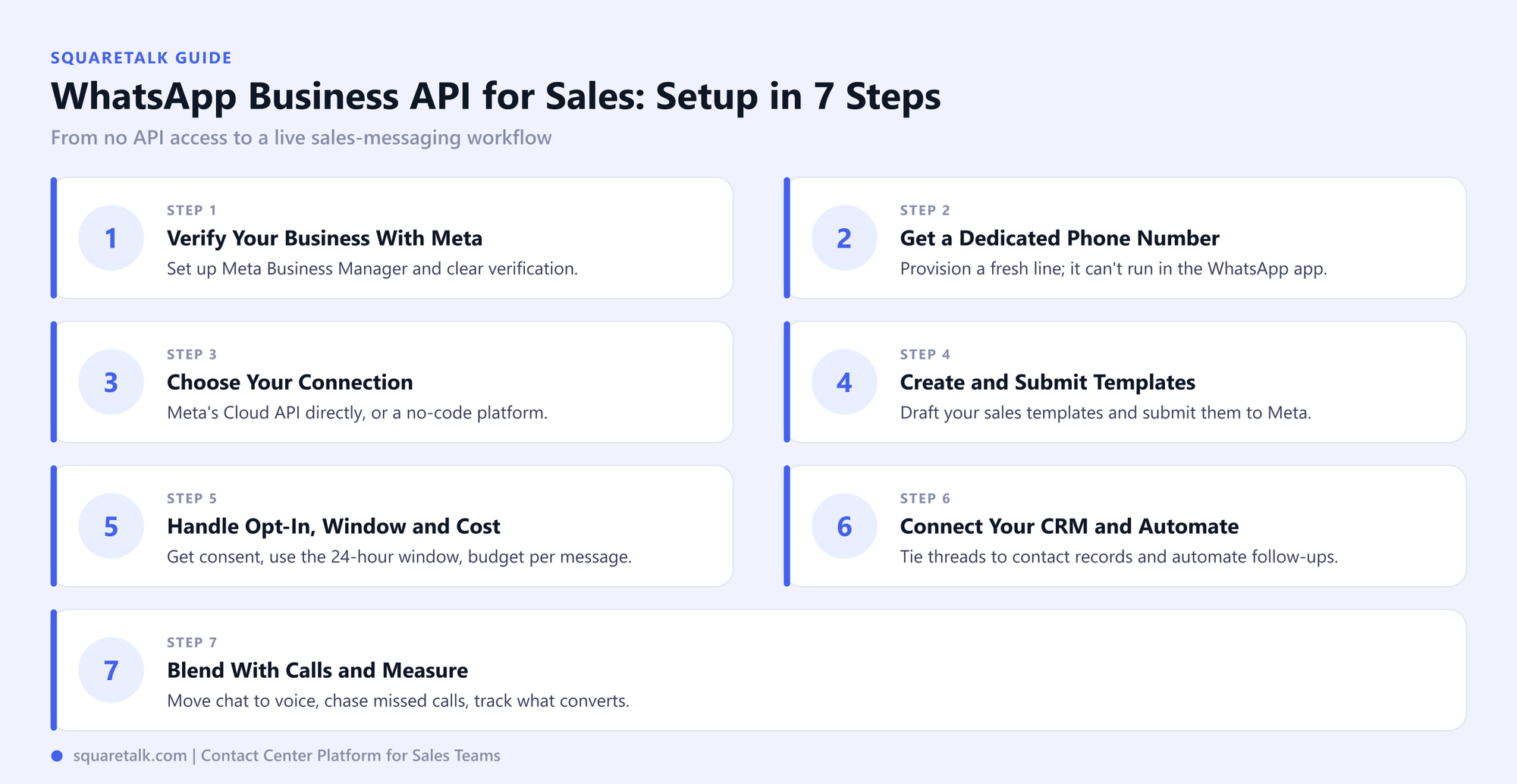
Step 1: Confirm you qualify and verify your business with Meta
Access to the API runs through Meta, so the first job is a verified Meta Business Manager account. Create one (or use your existing one) at business.facebook.com, then add your business details: legal name, address, website, and business category. Meta will ask you to complete Business Verification, which usually means uploading a document that proves the business exists, such as a certificate of incorporation or a utility bill in the company name.
Start this early. Verification can clear in a day or drag on for a week depending on how clean your documents are, and nothing downstream works until it's done. Get the person who owns your Meta assets to complete it, not a contractor, so your company keeps control of the account.
Step 2: Get a dedicated phone number for the API
The API needs its own phone number, and it comes with a catch worth knowing before you pick one: once a number is registered to the WhatsApp Business API, it can't be used in the regular WhatsApp or WhatsApp Business app again. So don't use a rep's personal mobile or the number already running on someone's Business app.
Most teams provision a fresh line for this. A virtual or local number works, and using a local number for the market you're selling into helps recipients recognize and trust the sender. The number also has to be able to receive the verification code Meta sends during registration, so make sure you can access it.
Step 3: Choose how you'll connect: Cloud API or a business platform
There are two ways in, and the right one depends on whether you have developers to spare.
- Meta's Cloud API, directly. Meta hosts the API and you build against it. This gives you the most control and no third-party layer, but it assumes engineering time to handle the integration, webhooks, and message-sending logic yourself. (Meta's older on-premise API was retired in October 2025, so the Cloud API is the current route.)
- Through a business platform or Business Solution Provider (BSP). A platform hosts the connection for you and gives your team a ready-made interface: a shared inbox, template management, routing, and reporting, with no code to write. For a sales team that wants to be messaging this week rather than after a build sprint, this is usually the faster path.
A contact center platform sits in the second camp and adds something a standalone messaging tool can't: WhatsApp lives in the same workspace as your calls, SMS, and email. That matters in Step 7.
Step 4: Create your sales message templates and submit them for approval
Here's the rule that shapes all outbound selling on WhatsApp: to start a conversation, or to message anyone outside a 24-hour window (more on that in Step 5), you must use a pre-approved message template. You can't free-type a cold opener.
Templates are messages you write in advance and submit to Meta for review. Each is filed under a category, such as marketing, utility, or authentication, and Meta checks it against its content rules before approving it, which typically takes anywhere from a few minutes to a day. For sales, draft the templates you'll actually lean on:
- A lead follow-up ("Hi [name], thanks for your interest in [product]...")
- A quote or proposal delivery
- A re-engagement message for prospects who went quiet
Write templates that read like a person, keep the promotional content honest, and prepare language variants if you sell across regions, since you can attach several templates, including different languages, to a single number.
Step 5: Handle opt-in, the 24-hour window, and messaging costs
Three connected rules govern what you can send and what it costs. Get these right before you scale outreach.
Opt-in. Meta requires you to collect a person's consent before you message them. That can be a checkbox at signup, a website widget, or a reply to an existing thread, but it has to be genuine. Consent rules also vary by market: the GDPR shapes how you handle this in the EU, and other jurisdictions have their own data-protection laws, so align your opt-in language with the regions you sell into rather than assuming one country's rules apply everywhere.
The 24-hour window. When a prospect messages you, a 24-hour customer service window opens. Inside it, you can reply with free-form messages, no template needed. Once it closes, you're back to approved templates to reopen contact. Sales teams win by replying fast while the window is open.
Cost. Since 1 July 2025, Meta prices the API per message rather than per conversation. What you pay depends on the message category and the recipient's country. Marketing messages cost more than utility ones, and the service replies a customer opens inside the 24-hour window are free. Budget by the templates you send most. (Pricing model last verified 22 July 2026; check Meta's current rate card for figures.)
Step 6: Connect your CRM and build the sales workflow
An approved number and templates get you messaging. Connecting your CRM is what turns it into a sales engine. Integrate the API with the tools your reps already work in so every WhatsApp thread is tied to a contact record, and inbound messages create or update leads instead of sitting in a separate inbox.
With that link in place, you can automate the repetitive parts: route an incoming message to the right rep by territory or product, fire a follow-up template when a deal stage changes, or send a re-engagement message to leads that have gone cold for a set number of days. The goal is that no lead slips because someone forgot to reply, and that reps spend their time on live conversations rather than logging them.
Step 7: Blend WhatsApp with your calls and measure what's working
WhatsApp works hardest when it isn't on its own. A rep can move a chat to a voice call in one click when a deal needs a real conversation, then drop back to messaging for the follow-up, with the full history intact. Blending channels also rescues outbound calls: pair the API with a power dialer and you can fire a WhatsApp template to a lead who didn't pick up, so an unanswered call turns into an open thread instead of a dead end.
Then measure. Track response times, template performance, and conversion by message type so you can cut what doesn't land and double down on what does.
How to do this in Squaretalk
If you connect WhatsApp through Squaretalk's contact center platform, Steps 6 and 7 collapse into one workspace:
- Connect. Link your WhatsApp Business account and centralize conversations in a shared workspace, off personal devices. You can submit any Squaretalk-provided number, including the local number that comes with every plan, to Meta for WhatsApp verification (Meta has the final say on approvals).
- Organize. Every conversation becomes a customer record, so context follows the lead across channels.
- Analyze. Measure engagement, response times, sentiment, and team performance from one dashboard.
Friction Points: What stalls WhatsApp Business API setup
How long does it take to get set up? The variable is Meta, not the messaging. Business Verification can clear in a day or take a week depending on your documents, and template approval usually lands within minutes to a day. Going through a business platform removes the engineering time; going direct via the Cloud API adds a build phase. Plan for days, not hours, and start verification first.
Can I use my existing business number? Only if it isn't already active on the WhatsApp app or Business app. A number registered to the API can't run in those apps, and vice versa. Most teams provision a dedicated line to avoid disrupting a number staff already use.
Do I need developers to set it up? Not if you connect through a business platform, which handles the API layer and gives your team an interface out of the box, like Squaretalk. You only need engineering time if you build directly against Meta's Cloud API. For most sales teams, the platform route is faster and needs no code.
What can I actually send a prospect before they reply? To open a conversation, only a pre-approved template, and only to someone who opted in. Once the prospect replies, a 24-hour window opens in which you can message freely. After it closes, you're back to templates to re-engage.
How much does it cost to message leads? Meta charges per message, priced by category and the recipient's country. Marketing messages cost more than utility ones, and service replies inside the 24-hour window are free. Your real cost tracks the mix and volume of templates you send, so model it from your actual outreach.
Frequently asked questions
Can I send promotional messages to prospects? Yes, using marketing-category templates, but only to people who opted in. Meta applies quality ratings and volume limits to protect users, so keep promotions relevant and easy to opt out of. Numbers that draw repeated blocks or reports get throttled, which quietly caps your reach.
Can several sales reps work from one WhatsApp number? Yes, and it's a core reason to move to the API. A whole team can send and reply from a single business number through a shared inbox, with each conversation assigned to the right rep. The free WhatsApp Business app, built for one phone, can't do this.
Is the WhatsApp Business API worth it for a small sales team? It can be. You don't need enterprise volume to benefit, and connecting through a no-code platform keeps setup light. If your reps send more than a handful of manual messages a day, or you want follow-ups tied to your CRM, the automation usually earns back the setup effort.
Is the WhatsApp Business API secure and privacy-compliant? WhatsApp encrypts messages end to end, and the platform can support GDPR and similar data-protection rules. Compliance is shared, though: you still need valid opt-in, clear data handling, and a way to honor deletion requests. Treat it like any channel that holds customer data.
Getting the WhatsApp Business API live for sales is mostly about clearing Meta's gates in the right order, then connecting the channel to the tools your reps live in. Do that, and follow-ups reach prospects where they're most likely to reply. To set it up alongside your calls and CRM in one platform, talk to our sales team.